Showing posts with label Phone Tips. Show all posts

Friday, 6 April 2012

MLB At Bat 12 for Windows Phone finally appears in the Marketplace


MLB At Bat 12 for Windows Phone finally appears in the Marketplace
Last week we reported that the latest version of the MLB’s app, At Bat 12, was released just in time for the new season. The app was available for iPhone, iPod touch, iPad, Android phones and tablets, the Kindle Fire, and BlackBerry. Missing from the mix? Windows Phone.

Leading up to opening day (yesterday), the MLB At Bat 12 website showed a Windows Phone version at the bottom that simply said, “Coming Opening Day.” Opening day came and went with no Windows Phone app spotted in the Marketplace.

We reached out to the MLB both through its website and via Twitter for comment, but did not receive a response. Interestingly as of the time of writing this post, the Windows Phone mention has been removed from the At Bat 12 page, but the app has finally surfaced in the Marketplace.

It is unclear if the At Bat 12 app was a casualty of the recent publishing delays Microsoft has been reportingdue to an influx of app submissions, but it definitely came a day late. Unfortunately there does not look to be a free At Bat Lite available, only the full version, which costs $14.99 for the season.

As the old saying goes, better late than never. Baseball fans can grab MLB At Bat 12 in the Windows Phone Marketplace here.

MLB At Bat 12 for Windows Phone finally appears in the Marketplace


source: MLB

Toray bringing self-repairing screen-protectors to market


Toray bringing self-repairing screen-protectors to market
Toray Advanced Film states that it is bringing some pretty futurist technology to market in the near future. It claims that it has developed a film that is able to repair itself in 10 seconds or less – Wolverine-style.

Toray currently manufactures the film for a small number of applications such as decorative films for laptops, but says it has established a volume production system for the product. The company says its intention is to obtain $24.3 million in sales in 2014.

The product has a self-repairing layer on the surface of the polyethylene terephthalate film. While Toray hasn’t revealed the details of how the layer is constructed, it has properties that allow it to repair scratches in 10 seconds or less at room temperatures. Unfortunately, if the film is damaged beyond that layer, say for example a knife cuts it; it is unable to repair itself. Toray has tested the durability of the film 20,000 times in succession, making a great solution to the wear and tear the average person’s tablet and phone sees. 

The company plans to begin production at its Fukushima Office and exhibit the film at the 3rd Highly-Functional Film Technology Expo, which runs from April 11 through the 13 in Tokyo. We look forward to seeing a demo video of this film then and, hopefully if it works as promised, integration into our gadgets very soon.

Toray bringing self-repairing screen-protectors to market


source: TechOn

Monday, 26 March 2012

Your iPad battery may last longer if you don't charge it fully


Your iPad battery may last longer if you don't charge it fully
A few days ago, the news came out that the new iPad battery doesn't actually reach a full charge until about an hour after the battery meter reads 100%, and we said that it might be a good idea to leave your iPad on the charger the extra time to make sure you get your full amount of juice. But, that may not actually be the best idea. 

Your iPad battery may last longer if you don't charge it fully
What we hadn't taken into account was the lifespan of the typical lithium-ion battery. You see, there is a tradeoff to be made between how full of a charge you keep per cycle with the overall lifespan of your battery. Batteries can't last forever, and eventually lose their ability to retain a charge. It turns out that charging your battery longer can speed up the degradation process that will forever kill your battery. Battery University found the difference in how fast your battery will degrade based on charging it to certain levels. 

Given that we've seen data saying the new iPad has a temperature of around 86F (30C) when charging, the difference between charging the battery fully and to just 60% is pretty substantial at that temperature. If you keep the battery around a 40% charge, your battery will only degrade 4% over the span of a year, but if you fully charge your battery, you could lose as much as 20% in the same period. 

It's possible that Apple factored in all of this and has set the battery meter to give a false reading in order to provide longer battery lifetimes, but there's no way to confirm that. Either way, maybe it isn't good to leave your iPad charging too long. 

source: Battery University via Mashable

Saturday, 10 March 2012

What people do when they find a smartphone

What people do when they find a smartphoneAnti-virus firm Symantec decided to see how honest people are when it comes to finding a lost smartphone. So the company set up a test that involved dropping 50 smartphones in 5 cities (New York City; Washington D.C.; Los Angeles; San Francisco; and Ottawa, Canada). The phones were dropped in high-traffic areas like a mall food court and a bus stop. So just what are the odds that the smartphone you just lost will be returned to you?

The results were not good. All but two of the devices were accessed by the person who found it (although the finder could have been looking for a contact number or some way to identify the owner). Only half of those who found one of the lost phones made any attempt to return the unit. Even worse, Symantec created bogus files on the "lost" devices with tempting titles like "HR Salaries" and a stunning 80% of those who found one of the phones took a peek at the planted information. Half of the finders tried to use a bogus remote access app trying to connect to a corporate network. 60% tried to read social media information and email.

The test was called "Honey Stick" in reference to the honeypots tests used to test a security process that leaves an open server in an attempt to tempt hackers to take control of it. Symantec's blog mentions a number of things you should do before your phone is lost or stolen. First, you should password-protect your phone, install an app that can wipe your device remotely and install find-my-phone software from your online app store. For a complete list of Symantec's suggestions, visit the sourcelink.

source: Symantec via ReadWriteWeb

Friday, 9 March 2012

New iPad vs iPad 2: which should you choose?

New ipad So the confusingly-named new iPad has been announced.
But how does it differ from the iPad 2 - which, coincidentally, will still be available to buy and - better still - has fallen in price.
The two devices are pretty similar in many ways, so we thought we'd do a straight-down-the-line comparison of the raw specs to see what's been enhanced for the new iPad.
See what's new in the next-gen
It's time for a new iPad vs iPad 2 face-off. Or screen-off, as it turns out...

New iPad vs iPad 2: Processor

The original iPad introduced the spoils of Apple's 2008 acquisition of semiconductor company P.A. Semi. The Apple A4 was an ARM Cortex-A8-based core clocked at 1GHz. The iPad 2 introduced the A5, a dual-core chip based on the new ARM Cortex-A9 design. The A5 is clocked at 1 GHz. We don't yet know what the new iPad's A5X is clocked at, but it remains a dual-core chip.

New iPad vs iPad 2: Graphics

What the A5X does have is better graphics capability - with Apple saying the new processor has quad-core graphics. Like the iPhone 4, the iPad and iPad 2 both had an Imagination Technologies PowerVR SGX-based graphics chip and we expect the new iPad is the same.
Apple reckons the new graphics are "twice as fast" as Nvidia's Tegra 3, and offers four time the graphics performance of Nvidia's chip. We're not sure Nvidia will let Apple get away with that one - and we're not even sure it can be true - Tegra 3's performance is stunning and the Tegra 3 GPU has 12 GeForce graphics cores...
New ipad

New iPad vs iPad 2: Memory

Like the original iPad and iPad 2, the new iPad comes loaded with 16GB, 32GB or 64GB of what is presumably still Toshiba-manufactured flash storage. iPad 2 packed 512MB of memory, but we don't yet have details on the new iPad, though we reckon it has to be 1GB.

New iPad vs iPad 2: Display

The screen is where the big change has happened. The iPad 2 inherited the 1024 x 768 LED-backlit display from the original iPad. The new iPad ups this significantly, with a 2048 x 1536 resolution display that has 264 pixels per inch - the pixels themselves are indistinguishable, just as on the iPhone 4 and 4S. Both are 9.7-inch displays and have a fingerprint-resistant oleophobic coating.
TechRadar on a new ipad

New iPad vs iPad 2: Communications

The new iPad ups the ante on the iPad 2 by introducing 4G LTE connectivity alongside the Wi-Fi capability.
As you'd expect, both have Assisted GPS and digital compass alongside the accelerometer found in all iOS devices and the three-axis gyroscope.
The new iPad also has separate US models for both the AT&T and Verizon networks, while there's also 21Mbps HSPA+, DC-HSDPA offering 42Mbps. LTE clocks in at 73Mbps. You can also use the new iPad as a Personal Hotspot via Wi-Fi, Bluetooth or USB.
You also get Bluetooth 4.0 on the new iPad instead of Bluetooth 2.1.
New ipad

New iPad vs iPad 2: camera

Both models have the same VGA front-facing camera, but round the back the new iSight camera (Tim Cook obviously likes that name) beefs things up to 5 megapixels. There's 1080p video recording instead of 720p and video stabilisation to boot.

New iPad vs iPad 2: Size and weight

Unlike the change between the original iPad and iPad 2 when the thickness dropped down to 8.8mm from 13.4mm, there's no such change this time - in fact thickness is slightly more at 9.4mm.
iPad 2
Height: 241.2 mm
Width: 185.7 mm
Depth: 8.8 mm
Weight: 601g for Wi-Fi model, 613g for the Wi-Fi and 3G model
New iPad
Height: 241.2 mm
Width: 185.7 mm
Depth: 9.4 mm
Weight: 601g for Wi-Fi model, 622g for the Wi-Fi and 4G model
New ipad

New iPad vs iPad 2: Battery life

Both offer up to 10 hours of surfing the web on Wi-Fi, watching video or listening to music while there's also a month of promised standby time. If you're using the new iPad on 4G, this drops to 9 hours. There's now a 42.5-watt-hour rechargeable lithium-polymer battery in the new model.

New iPad vs iPad 2: Pricing

The iPad 2 is now available in a 16GB version for $399 (Wi-Fi) and $529 (Wi-Fi+3G). iPad 2 will be £329 or £429 in the UK.
As for the new iPad, for Wi-Fi + 4G, it's $629, $729 and $829 respectively, or £499, £579 and £659 - though the faster data will be of limited use in the UK of course.
For the Wi-Fi only it's 16GB for $499, 32GB for $599 and 64GB for $699. That's £399, £479 and £559 in the UK.

Ice Cream SandWich Review.


android-4-0-ice-cream-sandwich-reviewThe definitive Android 4.0: Ice Cream Sandwich review
We've finally got our hands on the new Samsung Galaxy Nexus, so we've taken an in-depth look at Google's latest OS: Android 4.0, or Ice Cream Sandwich to its friends.
Google has told us that this is one of the biggest overhauls of the operating systems since it unleashed the Android project three years ago - and there's certainly a lot to plough through.
From enhanced contact menus to improved keyboards and NFC capabilities, even the most ardent Android users will have to spend some time getting used to the new OS - so let's dive in.

Interface

The most noticeable change with Ice Cream Sandwich is the interface - it might follow the same principles as the Android of old, but the way it's used is radically different in a number of ways.
Firstly, Android 4.0 is designed to work without buttons. That's not to say your Galaxy S2's keys won't work when the update happens, but going forward, it's going to be pristine bezels all the way.
Ice cream sandwich review
Now to navigate around, you're offered three softkeys: Back, Home and Multi-tasking (or Recent Apps). The latter is particularly new for phones, and comes from the Honeycomb UI - basically a set of thumbnails that show recently opened apps.
Here's the new part: swipe sideways to shut down an application, which will greatly help reduce the battery consumption of your phone if there's something silently updating in the background.
The Home and Back buttons are the same as they've always been, but no longer have a 'long press' function attached... so you can't automatically call up the keyboard, for instance.
If you move into something media-ish, such as watching a movie or browsing the web like a pro, these three buttons shrink down to tiny dots, so you've got more of the screen to look at. However, remember what each dot does, as pressing it will take you home/open the recent apps etc and you might not want to.
Ice cream sandwich review
For Android fans, this presents something of an issue: with the menu button gone, you'll have to hunt around the screen for three vertical dots which have taken its place. However, these can be anywhere, so sometimes you'll get distracted trying to work out how on earth to alter settings.
The multi-tasking pane also seems an odd choice for one of three buttons - it used to be you could access this functionality by long-pressing the home key, and it makes more sense to keep this and then have the multi-tasking slot taken up by a menu key.
Ice cream sandwich review
However, despite the odd placement, the multi-tasking pane is cool - simply swipe horizontally on any open app to shut it down, in a similar way to the Cards system on webOS - it certainly helps keep open applications under control.
The home screens are once again limited to five, but this time there's no option to get rid of those you don't want. It's not a huge issue to some people, but with the expandable widgets and loads of apps you'll be looking to download, we'd have expected more.
However, we wouldn't worry too much about that - the Nexus S only had a limited number of homescreens, but as soon as the rest of the industry got its hands on the OS there were millions of the things flying around.
There's a plethora of tiny tweaks and changes to the Android OS that we were impressed with, ranging from the Tron-like blue theme that pervades throughout the OS to the ability to unlock the phone simply by using your face.
Ice cream sandwich review
The latter security option is more novelty than anything else, with Google outlining at the start that it's not meant to be 100% secure.
We also found a few issues with getting it to recognise our face in varying light levels, or even working out which bit of the picture was a face - not the most effective for unlocking your handset, but when it works it's a great party trick.
The notifications bar has been given a functionality overhaul to now include larger information slots - if it's a contact that's sending you a message or a missed call, their contact photo will now appear too, which is a nice touch.
Ice cream sandwich review
And sometimes you want to get rid of some notifications, but not others - this has been taken care of by allowing you to swipe away the updates about apps and messages you don't care about, making it easy to maintain your info bar.
Settings has also been given a spot in the notifications pane, meaning no matter where you are in the OS you can always duck out and tinker with the phone - this is excellent news for some applications that need GPS or Wi-Fi enabled swiftly.
However, we would have though Google would have copied the likes of Samsung or HTC here and offered one-tap switching to these elements - it works really well on most phones, so we're surprised by its omission.
The other new addition is the dock at the bottom of the screen - this stays on every home screen, and like iOS can be altered to contain the applications you like to tap away at the most.
Ice cream sandwich review
Folders are more iOS-like too, with users given the ability to drag and drop icons on top of one another from the home screen to create bundles of apps which you can simply rename. Given Apple's ire about Google 'stealing' certain elements of its UI, we can't help but think this will create a little more angst down on Infinite Loop.
Ice cream sandwich review
Google is clearly also thinking about giving users more ability to enjoy apps than ever before by putting a link to the Market in the top right hand corner of the menu screen, which we really liked as it meant we always knew we could quickly update our app catalogue when needed.
The other big change is widgets have been brought to the fore: you can now look at each one on the menu screen without having to actually select it - this really helps when a new application you've downloaded has an associated widget and you're wondering whether to waste time popping it on the home screen.
Ice cream sandwich review
Overall, we love what Google has done with the Ice Cream Sandwich UI. It's nothing mind-blowing, but the little touches here and there will add to user delight, and that's what's needed to chip away at those that are dyed-in-the-wool iPhone users.

Apple managed to cram 11, 666 mAh battery in the new iPad, 70% more than the iPad 2


Apple managed to cram 11, 666 mAh battery in the new iPad, 70% more than the iPad 2
How does 11, 666 mAh tablet battery sound to you? Exceptional? Well, that's exactly what Apple managed to do with the new iPad. Despite not being much larger than the iPad 2 - a thickness of 0.37 inches (9.4 mm), while the iPad 2 is only 0.34 inches (8.8 mm) thick - the new iPad has 70% larger battery capacity.

We can't wait for the first disassemble videos to see how exactly Apple managed to achieve this feature. Most of the place inside an iPad is reserved for the battery, as you can see in the thumbnail picture of an iPad 2 disassembly, but the iPad 2 is by no means 70% more compact, so theenergy density must have been increased significantly in the new iPad's battery somehow.

It offers the same 9-10 hours of service as the previous generation, but let's not forget that we have to feed a screen with 3.1 million pixels, and download stuff over LTE with the new iPad. Still, having the same battery life as its predecessor with 70% larger battery capacity proves once again that a high-res screen/powerful graphics/LTE radio combo is a veritable battery hog.

via ZDNet

Thursday, 8 March 2012

5G: the mobile industry is already looking into the future


5G: the mobile industry is already looking into the future
The evolution of mobile networks is astounding. Nearly two decades ago we started to see mobile phones and placing a voice call was a luxury few could afford. Thus started the times of 2G and the voice call. Fast forward to the beginning of the millenium, and the first data networks arrived. Data was what 3G was all about. 

Last year data went huge with 4G allowing you to watch and stream videos on your mobile device. And 4G is just getting started - the US is leading the way with Verizon’s huge LTE network and AT&T, Sprint and T-Mobile have all said they will sooner or later roll out huge networks (AT&T’s one is already live in limited markets).

But what about 5G? So far, we’ve only heard about LTE-Advanced which would allow speeds to peak at 1 gigabit per second, nearly a 10-fold increase over the current theoretical limit of 100Mbps. But tone down your excitement - you won’t be able to drain its full capacity on your mobile device. Expectations are that real-life speeds will be around 15Mbps on the downstream, a tad faster than the current LTE peak of around 12Mbps.

"5G won't be about more speed, necessarily," Tod Sizer, head of wireless research at Alcatel-Lucent's Bell Labs, said. "It may be faster, but it will be more about meeting the expectation of service quality."

As technology becomes smaller, in the future all appliances, clothes, accessories connected to the network, according to industry analysts. From your door lock and thermostat, to shoes, watches and cars - all will drain the network’s power.

So don’t hold your breaths for leaps in speed with 5G. The new generation of networks will rather be centered around stability as its importance will grow and on recognizing and handling billions of different connected devices.

By around 2020, data consumption is expected to skyrocket by 30 times, again according to Sizer’s predictions. Carrier’s equipment will become smaller and installed closer to the users - in bus stops, lamps. Closer means less radiation and lower power drain, Sizer explained.

In reality, 5G doesn’t yet exist. We’re referring to the next generation of data networks without an official definition by the International Telecommunications Union (ITU). When do you think the future explained below will happen? Are you looking forward to it?

source: CNN

Overseas version of the Samsung Galaxy S II to get its Android 4.0 update on March 10th


Overseas version of the Samsung Galaxy S II to get its Android 4.0 update on March 10thAccording to SlashGear, those with the international version of the SamsungGalaxy S II will be receiving the Android 4.0 update on March 10th. That is less than two days away until Ice Cream Sandwich is powering the overseas variant of the phone. Of course, that doesn't make Stateside owners of the model any happier. 

Getting ICS in just 2 days?
Other countries have weighed in with launch dates of the OTA Android 4.0 update. Samsung Mobile Israel has already announced that March 15th will be the date in that country. What is holding up the update in the U.S. is the idiosyncrasies of each carrier's version of the model. Once Samsung gets past the problem of dealing with different carriers, it shouldn't take too long to roll out Ice Cream Sandwich in the States.

Those receiving the OTA download can load it over their mobile network, or speed things up using Wi-Fi. The fastest way to download the Android 4.0 update would bethrough the Kies desktop interface which hooks up your desktop PC and your Samsung handset. If you live in the U.S. with your Samsung Galaxy S II, just file away the above for later because eventually you WILL be receiving Android 4.0. Really.

source: SlashGear

iPad 3 against the HD tablets


iPad 3 against the HD tabletsWith yesterday's unveiling of the new iPad, having a very high-resolution screen on your tablet has become somewhat of a very big deal. And that's completely understandable when you take into account all of the goodies that come with having so many pixels - text becomes easier to read, images get crisper, HD 1080p video starts to make sense, games look more beautiful; overall, your whole experience with the device becomes more enjoyable.

But with all the fuss about the iPad 3's new 2048x1536-pixel display, some might have missed the fact that there are other tablets on the way with screen resolutions that happen to be dangerously close. Yeah, it doesn't seem like someone will have a res that high soon, but this doesn't mean that those 1920x1200-pixel powerhouses should be overlooked. In the gallery below, we're showing you all the 1080p HD screen-sporting tablets that we currently know of. And you'll be surprised to know how promising these guys are!

Monday, 5 March 2012

Mugen has a beastly 4000mAh battery for the Galaxy Nexus


Mugen has a beastly 4000mAh battery for the Galaxy Nexus
This one is pretty crazy. We love extended batteries, but there has to be a line drawn in the sand at some point, and we're thinking that Mugen has found that line with its new extended battery for the Samsung Galaxy Nexus. Obviously, it's a tough trick to balance adding power to a battery and adding overall bulk to a device, and Mugen has clearly ignored that. 

Mugen has shown off a 4000mAh extended battery for the GSM Samsung Galaxy Nexus, which should certainly add quite a bit of battery life over the stock 1750mAh battery that comes with the device. The trouble is that adding the battery plus the custom battery door to your Nexus will make it look as though you've glued a second phone to the back of your device. 

Luckily, there is a kickstand on the battery door, but we're not sure that makes up for how ridiculous such a large battery looks. If you are interested, the battery and door will cost you $99 and will start shipping on the 9th according to Mugen. Still, it's nice that GSM Nexus owners are getting an option, since the recent 3800mAh battery we saw from Seidio was only for the Verizon Galaxy Nexus. 

source: Mugen via Droid Life

New rumors about the iPad 3 Smart Cover and iPhone 5 case


New rumors about the iPad 3 Smart Cover and iPhone 5 caseA couple of new rumors have come from iLounge and look to shed some light on both the upcoming iPad 3 release as well as a possibility for the iPhone 5 release that is expected in the fall. The first rumor seems far easier to believe, and that has to do with the iPad 3, or more specifically a redesign to the Smart Cover for the iPad 3. 

The idea is that the Smart Cover for the iPad 3 will see additional protection to the back of the iPad. The Smart Cover for the iPad 2 was really just a cover for the screen of the iPad, and had no protection for the back. The new Smart Cover is said to be similar (at least in idea) to the Magazine Jacket by Incase, although we feel fairly confident in saying that Apple's version won't include an elastic strap, and will likely be held on with magnets once again. No word on if the case would also work with the iPad 2, but that seems unlikely. 

iLounge is also reporting that despite fairly constant rumors that the iPhone 5 would be a return to aluminum for Apple, and have a design reminiscent of the MacBook or iPad tapered edges, Apple may be continuing to use glass and ceramics for the iPhone case. The idea is that it is possible that Apple will go with Corning's Gorilla Glass 2 for the iPhone 5, but at this point it sounds like it is nothing more than some testing from Apple. Under Steve Jobs, Apple tended to build multiple prototypes with a number of different designs before choosing the winner, so that tradition may be continuing. That means it is very likely that Apple has prototypes for the iPhone 5 that are glass and some that are aluminum, but it's unlikely that a final decision has been made as to which it will be. 

source: iLounge via Ars Technica


Blue Tiger Stylus brings pressure sensitive note taking and drawing to the iPad


Blue Tiger Stylus brings pressure sensitive note taking and drawing to the iPad
If you’re in the market for a stylus for your iPad, we’re certain that you can effortlessly do a web search and find a trove of models that range in price. However, for those jealous about the pressure sensitive nature of the Galaxy Note’s S Pen, there are probably few accessories that you can find specifically meant to work in conjunction with the iPad.

Thankfully, it looks like we have an upcoming reasonable solution in the form of the Blue Tiger Stylus from Ten One Design – albeit, it’s worth mentioning that it doesn’t have an official name right now. In any event, this is the item that will appeal to the likes of designers, novice drawers, and even graphics artists, because of its pressure sensitive nature.

Actually, it’s aiming to be the world’s first pressure-sensitive Bluetooth 4.0 stylus for the iPad, which so happens to also support the CoreBluetooth framework in iOS 5. In real world usage, it simply means that this will pair directly to the iPad and features specific enhancements such as palm rejection capabilities, full pressure sensitivity, and much more. Naturally, this will undoubtedly be a tool that’s perfect for those requiring more precise control in either taking notes or drawing something.

Currently, it’s still in the development stage, but developers can snag a sample unit and free downloadable SDK through their web site. Unfortunately, there is no time frame or pricing attached to the Blue Tiger Stylus right now, so in the meantime, those who are anticipating this thing will simply have to wait it out. Hey, at least it's on the horizon.

source: Ten One


Twenty-one favorite iPhone tips


Browse better, e-mail more efficiently, and do more with your iPhone

You can do a lot with the iPhone—make a phone call, surf the Web, watch a movie—just with the touch of a virtual button. But dig a little deeper, and you can do a lot more. After three weeks of putting the iPhone through its paces, here are 21 tips for getting the most out of the iPhone’s advertised features… or finding a couple of features you might not know were part of the phone’s repertoire. Look for more tips in the coming weeks, both at Macworld.com and our new iPhone Central blog.

1. Use your iPhone as a storage device

One of side benefits to the iPod beyond its music-playing capabilities is the fact that you can use it to store files. You can’t do this with an out-of-the-box iPhone. But with the help of a $10 program—and a Mac—you can. The app is iPhoneDrive, a small utility from Ecamm Network that displays the free storage area of an iPhone in the manner of a Finder window in Column view. To add files to the iPhone, either click the Copy to iPhone button or drag a file or folder to the iPhoneDrive Window; dragging from the iPhone or clicking on Copy From iPhone puts iPhone files on your Mac. Note that music and photo files for use on your iPhone are off limits.—CHRISTOPHER BREEN

2. Get a bigger keyboard for Web browsing

Like any other iPhone function requiring data entry, tapping Safari’s address bar summons an on-screen keyboard. However, if you rotate the iPhone horizontally before tapping the address bar, the Safari window will switch to horizontal mode; then, when you then tap the address bar, the onscreen keyboard also appears horizontally. More important, it will also be much larger than the standard vertical keyboard, making data entry a little easier. By the way, Safari is currently the only iPhone application in which this horizontal keyboard appears. (Also worth noting: If you summon the keyboard before rotating your iPhone, then Safari won’t rotate.)—DAN FRAKES
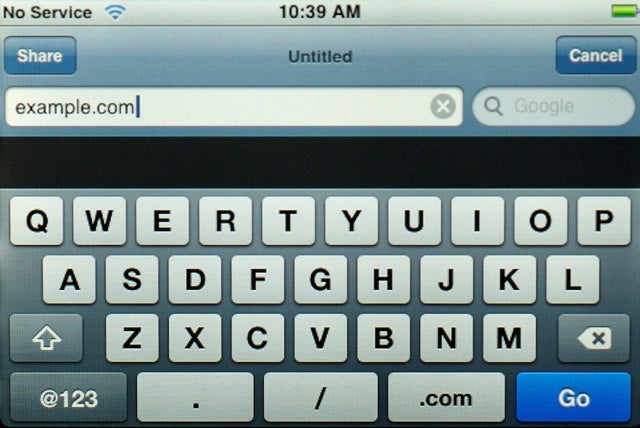
Rotating your iPhone horizontally before summoning the onscreen keyboard produces this horizontal—and much easier to use—keyboard.

3. Create a home page in Safari

With the regular version of Safari that runs on your Mac (and now your Windows-based PC), setting a particular site as your home page is as simple as going to the General tab in Preferences and typing in a URL. You can’t do that on the iPhone, however. But you can use this work-around: Add your would-be home page to your bookmarks list and then move it to the top of your bookmarks list. Yes it’s an extra tap—first the Bookmarks button and then the bookmark itself—but it will get you to your favorite Web page with a minimum of fuss.—DF

4. Share your URLs

If you want to send the URL of a Web page you’re viewing to a friend, tap the Address Bar, then tap Share. A new e-mail message, containing the URL, will open in Mail; just choose a recipient(s), add any comments you want to include, and tap Send.—DF

5. Scroll through separate boxes on a Web page

If you encounter a scrolling box or list when surfing Safari on your iPhone—say you’re responding to a post at the Macworld.com forums —and try to scroll using your finger, you’ll find that the entire page scrolls, instead of just the box. The trick is to zoom in and scroll such areas with two fingers.—DF

6. Make a call from Safari

If you find a phone number in Safari that you’d like to call—say the phone number at a restaurant you’d like to make reservations at—there’s no need to jump to the phone component. Just tap the number; iPhone will dial it for you. (This is also the case with phone numbers and URL embedded in e-mails and SMS chats; tapping either one will place a call or open a Web page, respectively.)—PHILIP MICHAELS

7. Find out where those links go

When in Safari, holding your fingertip down on a link instead of tapping it produces an information balloon that displays the underlying URL. The same thing happens in Mail when you hold a link, which makes this tip much more useful. Now when those “account update” e-mails appear, you can press and hold on the link to find out if you’re really going to be taken to the site the e-mail claims.—DF

8. Avoid Mail confusion

Don’t name two of your e-mail accounts with the same name, as Mail will get confused and copy the settings from one account to the other. And you can’t fix the situation by simply renaming one account; you’ll need to delete one of the accounts and then recreate it.—DF

9. Mark previously-read messages as unread

There doesn’t appear to be a way to the mark a read message as unread on the iPhone, but it’s in there. While viewing a message, tap Details, which reveals a Mark As Unread option; tap it, and the next time you view your Inbox, the message will display the Unread indicator.—DF

10. Recover ‘lost’ e-mails

Say you try to send an e-mail, but the iPhone can’t get network access. You might think your message has disappeared completely, but don’t worry—it’s still on your phone. A temporary Outgoing folder is created, and the message winds up in there. You can access this temporary folder from the main screen of the sending account; the folder will disappear once network access is available and the message is sent.—DF

11. Create e-mail folders

Well, actually, you can’t create e-mail folders on the iPhone. What you can do, however, with an IMAP e-mail account is create folders on the IMAP server—for example, if you have a .Mac account, using the .Mac Web Mail interface. Those folders will then appear on the iPhone, and their contents will—eventually—be synced between the iPhone and the server.—DF

12. Save e-mail messages as drafts

If you want to save a message you’re working on so you can come back to it later, tap Cancel. Instead of deleting the message immediately, Mail pops up a dialog asking you to Save, Don’t Save, or Cancel. Tap Save and the message is placed in your Drafts folder. If your account doesn’t currently have a Drafts folder, Mail will create one. However, don’t be alarmed if the message doesn’t appear in Drafts immediately; in my testing, it takes a while to show up.—DF

13. Pick where you listen to voicemail

If you’ve got a Bluetooth headset, incoming calls get routed there automatically—not so when you call up Visual Voicemail. However, an Audio button on the Visual Voicemail screen lets you set where you listen to your message: the handset, the built-in speaker, or a Bluetooth headset.—JIM DALRYMPLE

14. Find another way to scroll through Contacts

Everyone knows that you can scroll through the Contacts list on your iPhone two different ways—either flick your finger on the list to scroll up or down, or tap on one of the letters on the alphabet running down the right side of the screen to jump to contacts beginning with that letter. But there is a third way: hold your finger on the alphabetical list and then slide up and down—you’ll be able to scroll through your Contacts in a more controlled manner than by flicking your finger.—JD

15. Use the Favorites and Recents list for more than just phone calls

Favorites and Recents are part of the main Phone screen; the former is iPhone’s version of frequently called numbers while the latter is a list of people who you’ve called and whose calls you missed. But this is not just a phone feature—assuming the numbers in Favorites and Recents belong to a mobile phone, you can send them an SMS message. Just tap the > button next to the contact name or number and then tap the Text Message button at the bottom of the contact listing.—DF

16. Save time in driving directions

One of the primary uses for the iPhone’s Map application is to get driving directions. Both the starting point and destination fields offer the Bookmarks button, so you can quickly use a bookmark, recent location, or contact when searching for directions. The first thing you should do in Maps is find your own address and then bookmark it—this will make finding directions to and from locations as easy as tapping your home bookmark.—DF

As with the iPod, the iPhone lets you set the speed of audiobook playback.

17. Recreate some of the iPod’s audio controls

If you listen to an audiobook on an iPod, you probably know that, ever since the fourth-generation iPod’s release, you can alter the playback speed to make it go faster or slower as your preferences dictate. That feature makes its way over to the iPhone as well. Just tap Settings and then the iPod option; tap the Audiobook Speed entry and in the resulting screen, tap to choose among Slower, Normal, or Faster.
In fact, that’s just one iPod feature that also appears on the iPhone. You can also use the Settings screen to turn on Sound Check (the feature that makes volume more consistent from one track to another) and change the EQ with 22 included equalization presets.—CB

18. Change your iPod icons

By default, the icons on the bottom of the iPod screen are Playlists, Artists, Songs, Videos, and More. You can change those first four, just as you would the commands that appear on an iPod’s main screen. Simply tap the More icon and, in the More screen, tap the Edit button at the top-left of the screen. A Configure screen will wipe up from the bottom and display icons for Albums, Podcasts, Audiobooks, Genres, Composers, Compilations, Playlists, Artists, Songs, and Videos. To substitute one of these icons for one that appears at the bottom of the screen, just tap and hold on an icon and drag it over the icon you want to replace. Tap Done when you’re done.—CB

19. Say goodbye to already-viewed videos

Even owners of the largest-capacity iPhone might feel constrained by the 8GB limit when it comes to storing videos. A full-length motion picture takes up around 1GB of storage, which is a significant chunk of space for just one piece of media. To help ease the storage crunch however, the iPhone offers to delete videos after you’ve finished watching them; just tap a button and Pirates of the Caribbean will disappear off your iPhone, freeing up more space.—CB
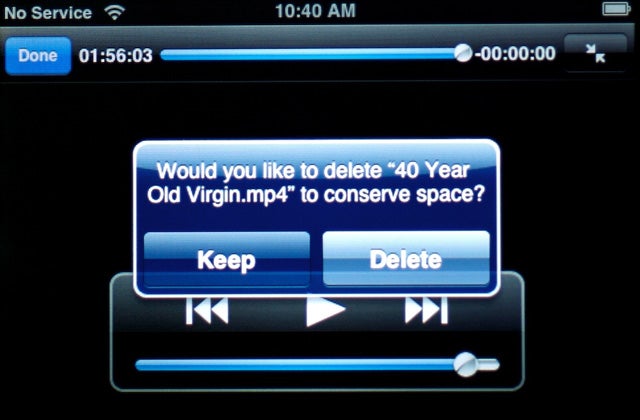
After you finish watching a movie, the iPhone will ask if you want to free up space by deleting it.

20. Syncing notes with the iPhone

One of the major limitations to the iPhone’s Notes app is that you can’t sync it with data from any application on your Mac. There’s a work-around, however—each contact has a notes field. So create a fake contact and paste any info you’d like to keep with you in the notes field for that contact in Address Book. One sync later, and all that info will be at your fingertips.—JONATHAN SEFF

21. Rebooting your iPhone

Pretend for a moment that your iPhone suddenly becomes unresponsive. Pushing the Home button does nothing. Hitting the On/Off button produces the same discouraging result. What do you do? Apple’s first reset tip is to press and hold the Home button for about six seconds to quit any application that might have locked up your iPhone. If that doesn’t work, trying pressing and holding both Home and On/Off; after about 10 seconds the Apple logo will appear. (This reboot trick takes a little big longer than the iPod equivalent—holding down Select and Menu usually restarts your music player after four seconds.)—CB

Popular View